Windows 11 has a useful accessibility feature designed to assist the visually impaired. It is called "High Contrast" mode and is activated with a keyboard command shortcut. The keyboard command is "Shift + Left Alt + Print Screen" all at the same time. It is important that you use the Alt button to the left of the Space Bar on your keyboard. The right side Alt button will not work. After pressing the keyboard command a dialog box will appear somewhere on your screen. You need to select "Yes" in this dialog box in order to activate High Contrast mode. After selecting "Yes" in the dialog box your display will go almost completely blank for a few moments. This is normal and expected. When the display comes back it will be in High Contrast mode. The mode can be turned off by using the same keyboard command again.
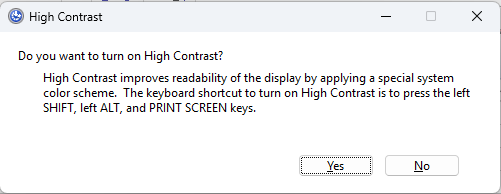
Your RT Systems software is compatible with this mode. When you turn High Contrast "On" you will see your programmer adjust accordingly. One point of note is in regard to the "grid" or main spreadsheet display. You will not see it change appearance in real-time with the rest of the interface when you toggle High Contrast "On." Instead you will need to open a new file in order for the grid to gain the High Contrast appearance. All new files you create while High Contrast is "On" will have the full High Contrast appearance.
If you have a file that was created with High Contrast turned "Off" the grid in that file will be locked to the normal, default appearance. It cannot be toggled to the High Contrast appearance. Likewise, if you have a programming file that was created with High Contrast turned "On" the grid in that file will retain the High Contrast appearance even if you turn High Contrast mode off. In essence, the grid will be locked to the appearance mode that was active when that file was first created. Keep this in mind as you are creating your programming files should you elect to use High Contrast mode.
NOTE that using High Contrast Mode WILL have an effect on other aspects of your computer's visual presentation completely unrelated to your usage of RT Systems software. It is a system wide feature toggled on/off for your whole computer and all programs on your computer. You are not able to selectively choose which programs do and do not use it. This is simply the nature of the feature and is a tradeoff to consider as you determine whether it is appropriate for your needs. This article is intended only to share our knowledge of the feature and how it might improve software accessibility for our customers.
EXAMPLES
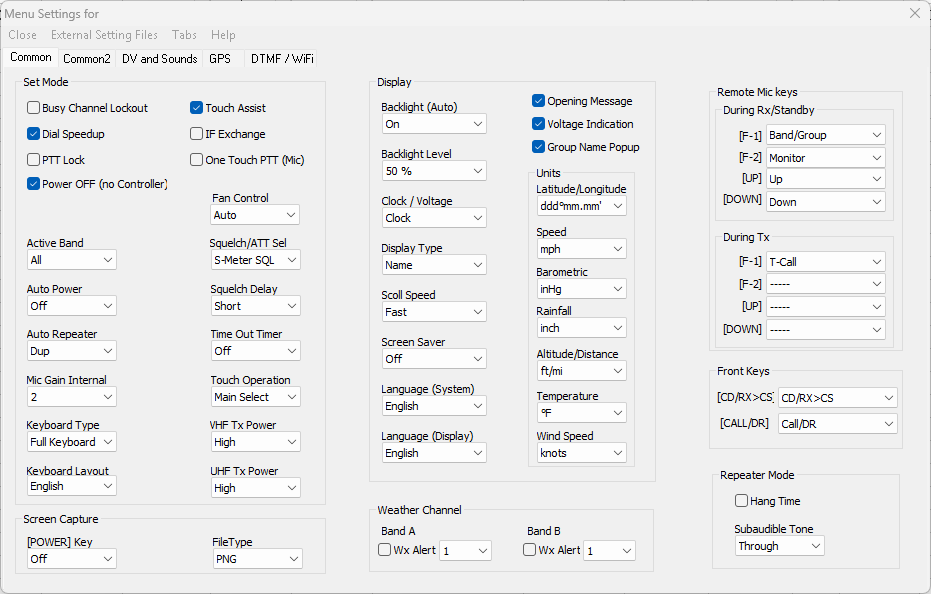
Normal appearance for Radio Menu Settings in ID-5200 Programmer:
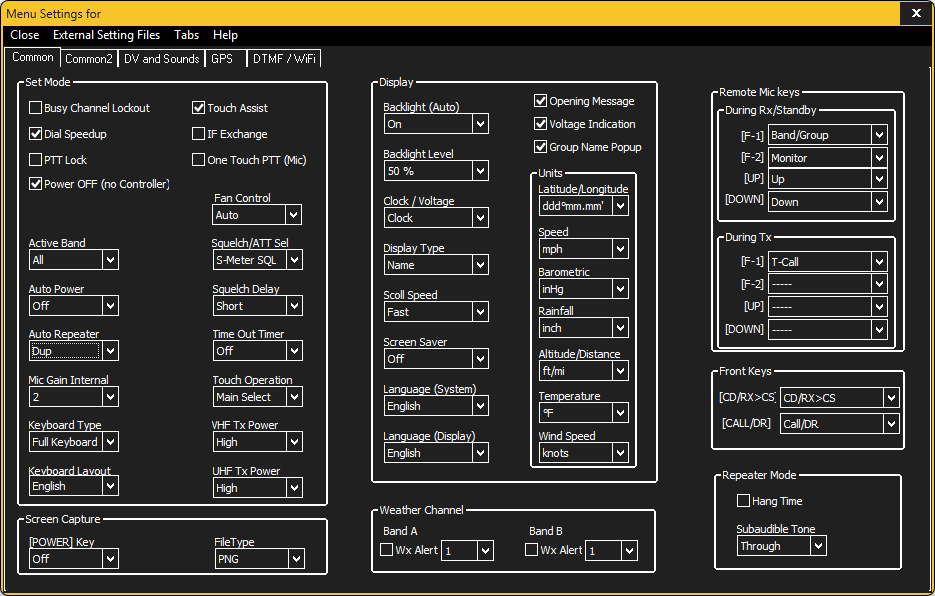
The same ID-5200 Radio Menu Settings in High Contrast mode. The yellow window border is normal and is how High Contrast mode draws our attention to the currently active window. The border will turn gray when a window is not currently active.
Was this article helpful?
That’s Great!
Thank you for your feedback
Sorry! We couldn't be helpful
Thank you for your feedback
Feedback sent
We appreciate your effort and will try to fix the article